
Features
The Features section gives you a focused way to enable or disable specific Windows behaviors without digging through scattered Settings pages, legacy control panels, or raw registry paths. It is designed for quality-of-life changes such as taskbar preferences, File Explorer behavior, gaming-related switches, desktop icons, and a few system defaults.
Note: This is a preview feature currently under active development.
What the Features section is for
The Features section was introduced in optimizerDuck v2.7.1 as a new, dedicated area for Windows feature toggles. It complements the existing Optimize section rather than replacing it.
In general:
- use Features for Windows interface and behavior toggles
- use Optimize for broader performance, privacy, and system tuning changes
This distinction matters because many options that used to feel like user-experience tweaks fit much better here than in the optimization system.
Open and browse categories
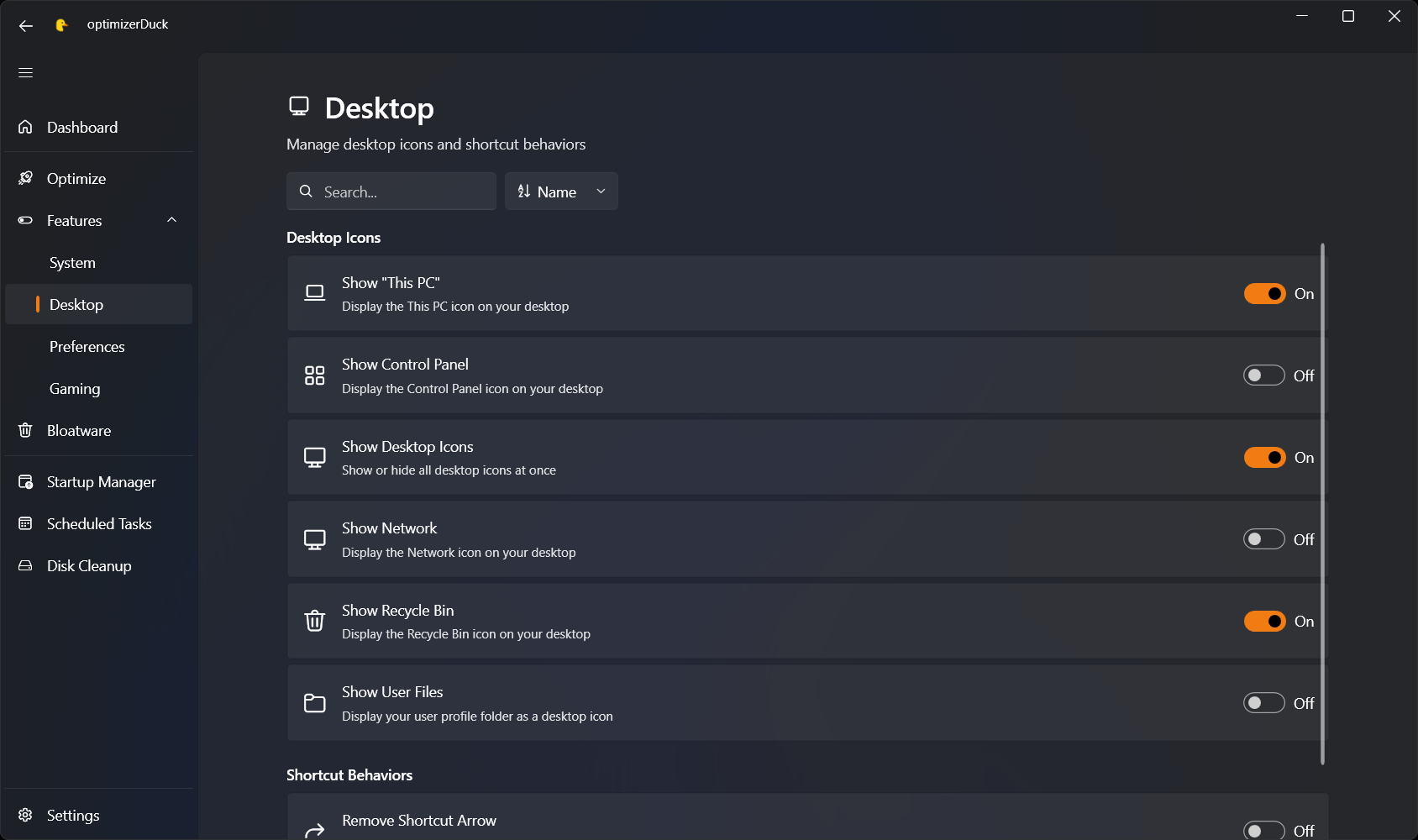
When you open the Features tab, optimizerDuck shows a category overview as a list of cards. Each card includes a name, an icon, and a short description so you can quickly jump to the part of Windows you want to customize.
Inside a category page, optimizerDuck provides:
- a search box to filter features by name or description
- a sort menu to organize items by name or current enabled state
- section grouping so related toggles stay together
- a single switch on each card to enable or disable that feature
Enable or disable a feature
Using a feature toggle is intentionally simple.
- Open the Features tab.
- Select the category that matches what you want to change.
- Optionally search or sort the list.
- Find the card for the Windows behavior you want.
- Use the switch on the right side of the card to turn it on or off.
Each card includes a short description pulled directly from the app's localized resources, so you can understand what the switch changes before applying it.
How changes are applied
Most feature toggles in optimizerDuck are implemented as direct Windows setting changes, usually by writing the underlying registry values that control that behavior.
For many shell-related features, the app automatically refreshes the Windows shell after a change by restarting Explorer. This is why taskbar, Explorer, and desktop changes often take effect immediately instead of waiting for a full reboot.
Some settings, especially gaming or system-level ones, may still depend on your Windows environment and can require you to sign out, restart Explorer, or reboot Windows before the effect is fully visible.
Things to keep in mind
The Features section is convenient, but it still changes real Windows settings. Keep these points in mind before making larger batches of changes.
Feature behavior depends on Windows version
Some toggles only make sense on certain Windows versions. For example, classic context menu behavior is specific to Windows 11, while other taskbar options may behave differently across Windows 10 and Windows 11.
Many toggles are easy to reverse
Unlike one-way tweaks, feature switches are built around enabling and disabling the same Windows behavior. If you do not like the result, return to the same card and switch it back.
Why use this instead of changing Windows manually?
optimizerDuck brings together settings that are normally spread across:
- the Settings app
- File Explorer options
- taskbar personalization menus
- older Control Panel pages
- registry-based hidden switches
That makes the Features section especially useful when you want a faster and more consistent way to apply common Windows customizations.