
Scheduled Tasks
View and manage Windows scheduled tasks.
What are scheduled tasks?
Operating systems like Windows have a built-in scheduler that allows programs and scripts to launch automatically at specific times, when you log into your computer, or after certain system events occur.
While this is incredibly useful for genuine system maintenance, such as performing automatic nightly backups, checking for essential security updates, or running routine diagnostics, many third-party applications abuse this feature. When you install new software, they often create their own hidden scheduled tasks to run background telemetry, launch update checkers on every boot, or pre-load services you didn't ask for. Managing these tasks directly puts you back in control of your system's resources.
How to disable or enable a scheduled task?
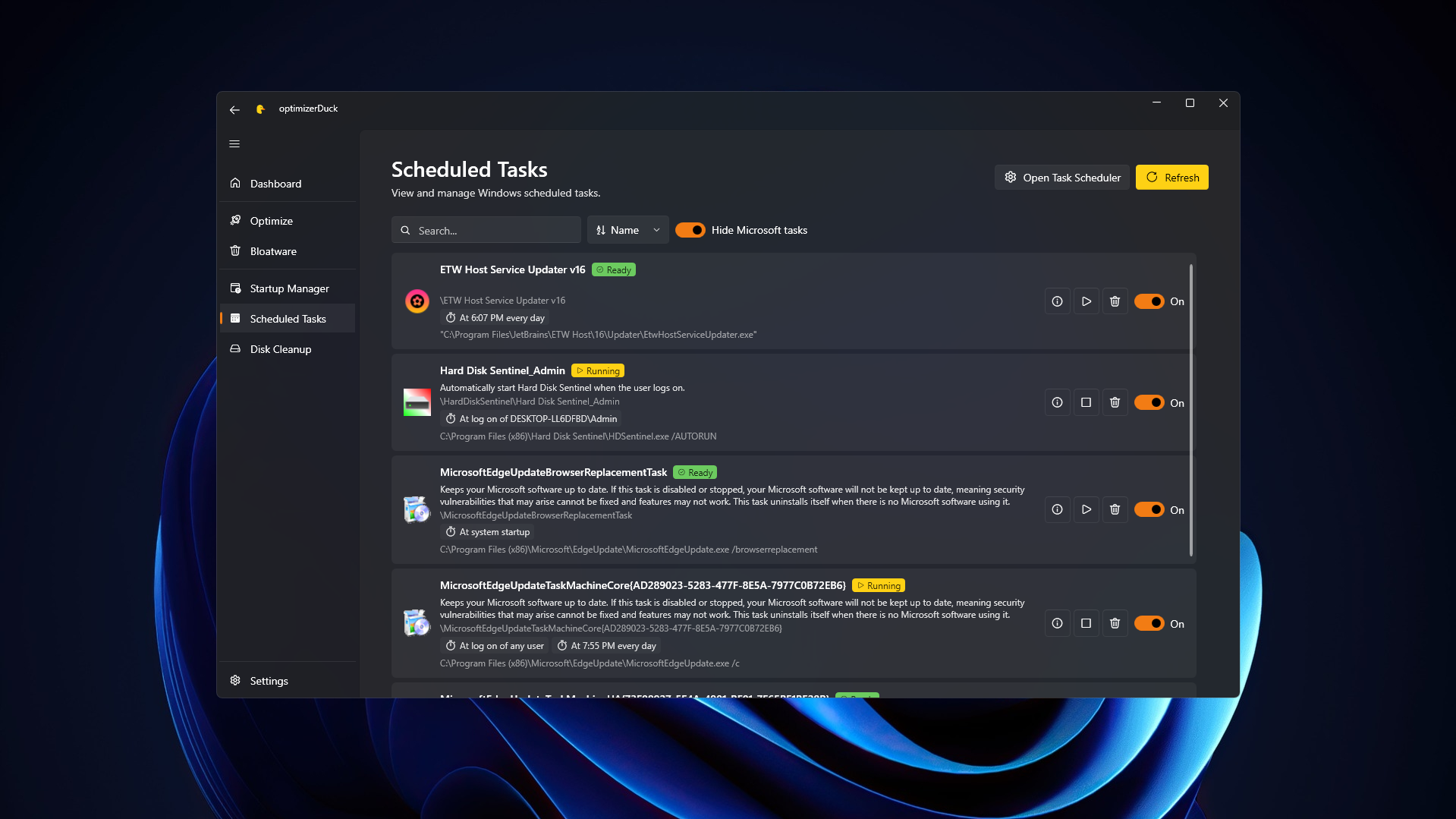
In the Scheduled Tasks view, you can see all the automated processes currently configured on your system. Rather than having to dig through Windows' complex legacy "Task Scheduler" application, optimizerDuck provides a clean, modern interface showing everything you need.
If you spot a task from an application you recognize but don't want running automatically behind the scenes, you can easily turn it off. To disable a task, find it in the list and click the toggle switch located on the center-right side of the task card. The switch will turn gray, indicating that the task will no longer trigger on its schedule.
Should you ever need to restore the automated process, for example, if you realize an application requires its update checker to function properly, you can simply flip the switch back. A notification will always pop up to confirm that the changes were successfully applied to the Windows Task Scheduler.
How to permanently remove a scheduled task?
Sometimes disabling a task isn't enough, especially if it belongs to an application you've already uninstalled but that left behind junk records. In these cases, you can delete the scheduled task entirely.
To do this, locate the unwanted task and click on the garbage can icon positioned on the center-right of its card. Because this action removes the task configuration permanently from Windows, optimizerDuck will ask you for confirmation first. This prevents you from accidentally deleting something important. Once confirmed, a notification will verify that the task registry has been successfully cleared.
Be careful
The Task Scheduler is a powerful core Windows component. Because it handles everything from system backups to driver operations, you must exercise caution.
Only modify or remove scheduled tasks that you completely recognize, such as update checkers for specific software you've installed (like Adobe, Google Chrome, or specific games).
WARNING
DO NOT touch scheduled tasks that you are unfamiliar with. Some entries may be related to critical system services from Microsoft or hardware drivers for your graphics, network, or audio devices. Modifying these can lead to system instability, broken features, or crashes. If you are unsure about what a specific task does, leave it enabled or search online using the task's name to find more information.