
Startup Manager
Manage the applications that automatically run when your computer starts up.
What is the Startup Manager?
When you turn on your computer and log into Windows, several programs are configured to launch automatically in the background. While this is helpful for essential tools like antivirus software, many third-party applications quietly add themselves to this list without your explicit permission. These extra programs consume processor cycles, take up RAM, and can drastically increase the time it takes for your PC to become fully usable after booting.
The Startup Manager is a built-in tool in optimizerDuck designed to give you complete visibility and control over this process. It unifies all startup triggers, whether they are hidden in the system registry, placed in startup folders, or set up as logon scheduled tasks, into one easy-to-manage dashboard.
Viewing startup items
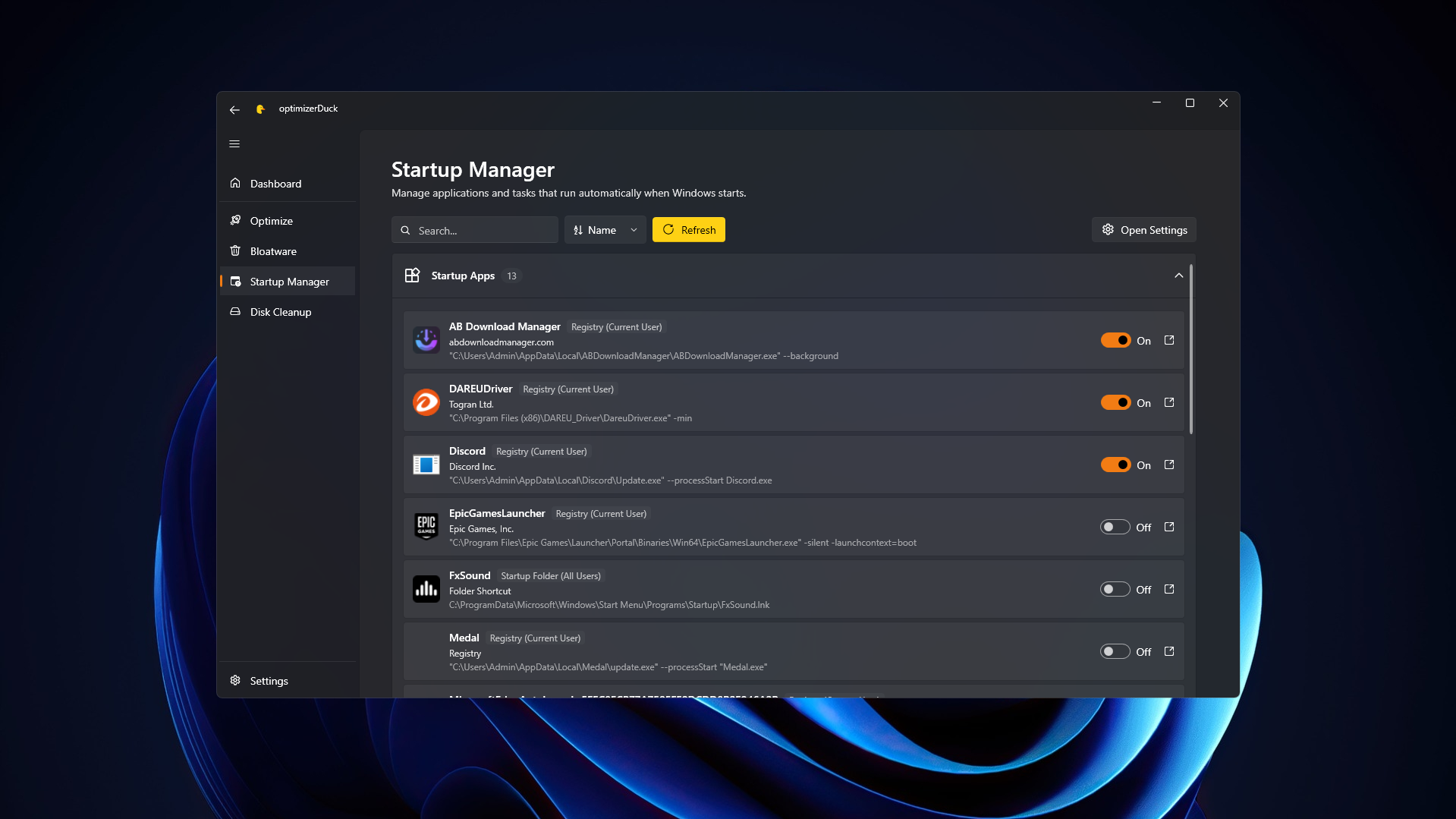
When you navigate to the Startup Manager tab, optimizerDuck presents a clean, unified list of every program registered to run at startup.
Instead of showing confusing technical entries, the interface is designed to help you quickly identify each application. For every item, you will see its recognized name, its description, and precisely where the startup trigger is located (such as the registry or a specific folder). Most importantly, you can view the exact command that the application executes, giving you full transparency into what is happening behind the scenes.
The view is divided into two primary sections: Startup Apps, which rely on traditional startup paths, and Scheduled Tasks (Logon), which rely on the Windows Task Scheduler to launch immediately when you sign in.
Disabling or enabling a startup program
Taking control of your startup items is the easiest way to improve boot times. If you spot a program that you recognize but don't need running immediately every time you turn on your computer (like a game launcher, an update daemon, or a cloud sync client), you can disable it effortlessly.
To prevent a program from launching automatically:
- Locate the program in the list of startup items.
- Click the toggle switch located on its card to disable it.
- The switch will update visually, and the program's registry key or task will be disabled, preventing it from running during the next boot.
If you want to re-enable it, you can simply click the toggle switch again.
Disabling or enabling a startup scheduled task (Logon)
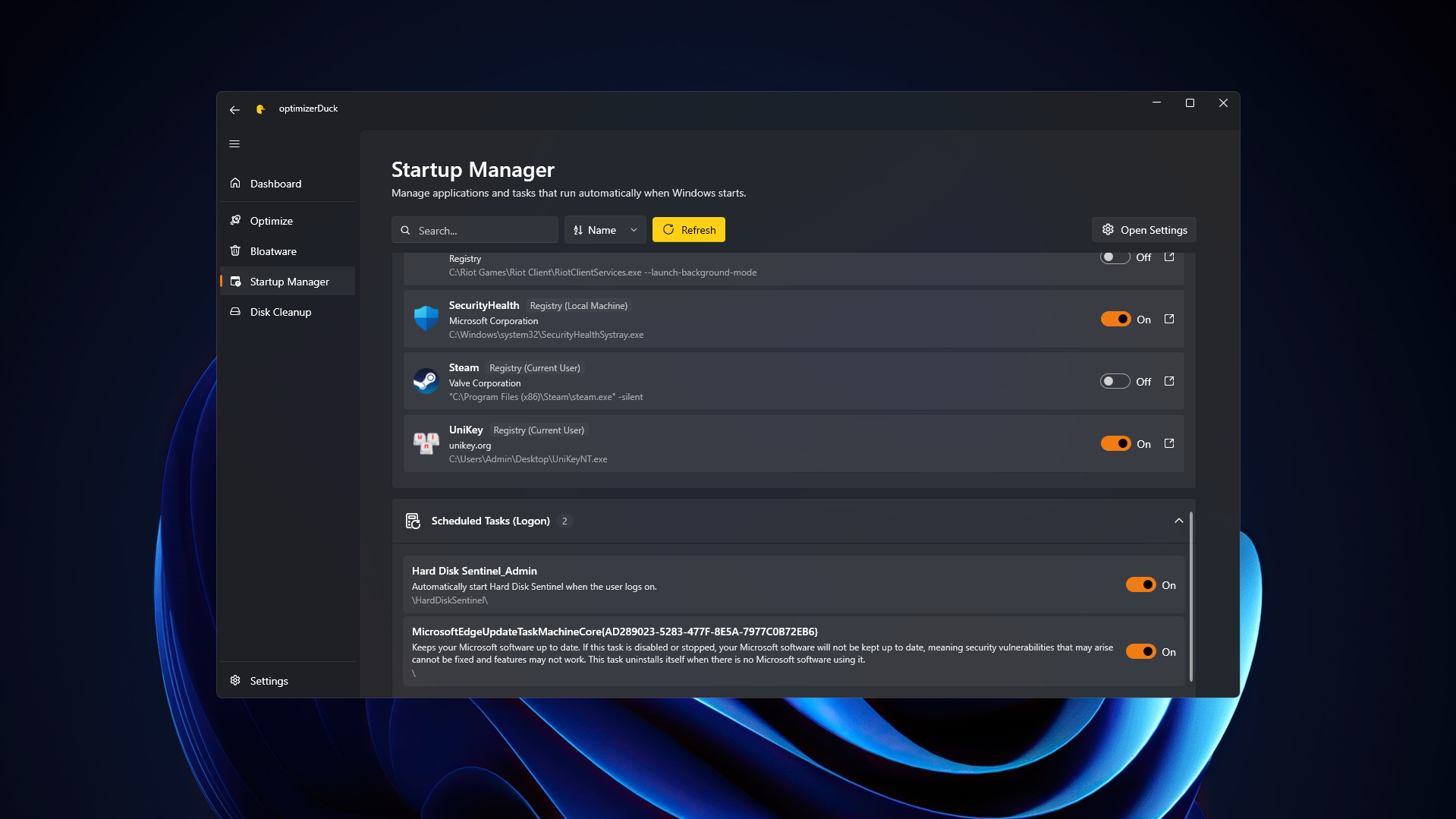
Some applications try to bypass traditional startup lists by creating a task in the Windows Task Scheduler configured to run "At log on". optimizerDuck specifically surfaces these tricky entries in the Startup Schedule section.
Managing these works exactly the same way as traditional startup apps. You can review the task details and use the toggle switch to easily enable or disable them in one click.
TIP
Disabling a startup program or scheduled task does not uninstall, delete, or break it. You are simply stopping it from opening automatically. You can always open the program manually from your Start menu or desktop shortcut whenever you actually need to use it.
What should I disable?
Knowing what to turn off can be intimidating, but as a general rule of thumb, you only need a few essential services running continuously.
- Safe to disable: Cloud storage sync clients (if you don't need instant syncing), chat applications like Discord, Skype, or Microsoft Teams, media players, game launchers, and software update checkers.
- Keep enabled: Security and antivirus software, necessary hardware drivers (such as your audio control panel, graphics card companion software, or mouse/keyboard software), and crucial system utilities.
WARNING
Always be cautious when disabling startup items you do not immediately recognize. Some generic-sounding processes might actually be related to critical system services or important driver functionality. If you are ever unsure what an item does, the safest course of action is to leave it enabled or search online using the program's provided name and command line for more context.