Getting Started
Welcome to optimizerDuck, a free, open-source Windows optimization tool built for performance, privacy, and simplicity. This guide will help you download, launch, and configure the application to suit your preferences.
Download & Execution
optimizerDuck is a portable application, which means no installation is required!
- Go to the Download page to download the latest executable file.
- After downloading, you will have
optimizerDuck.exefile. - Double-click the downloaded
.exefile to run it.
Run as Administrator
For optimizerDuck to apply system-level optimizations effectively, it natively requests administrative privileges when required. You can also right-click the .exe file and select Run as administrator if you face any issues.
Changing Language
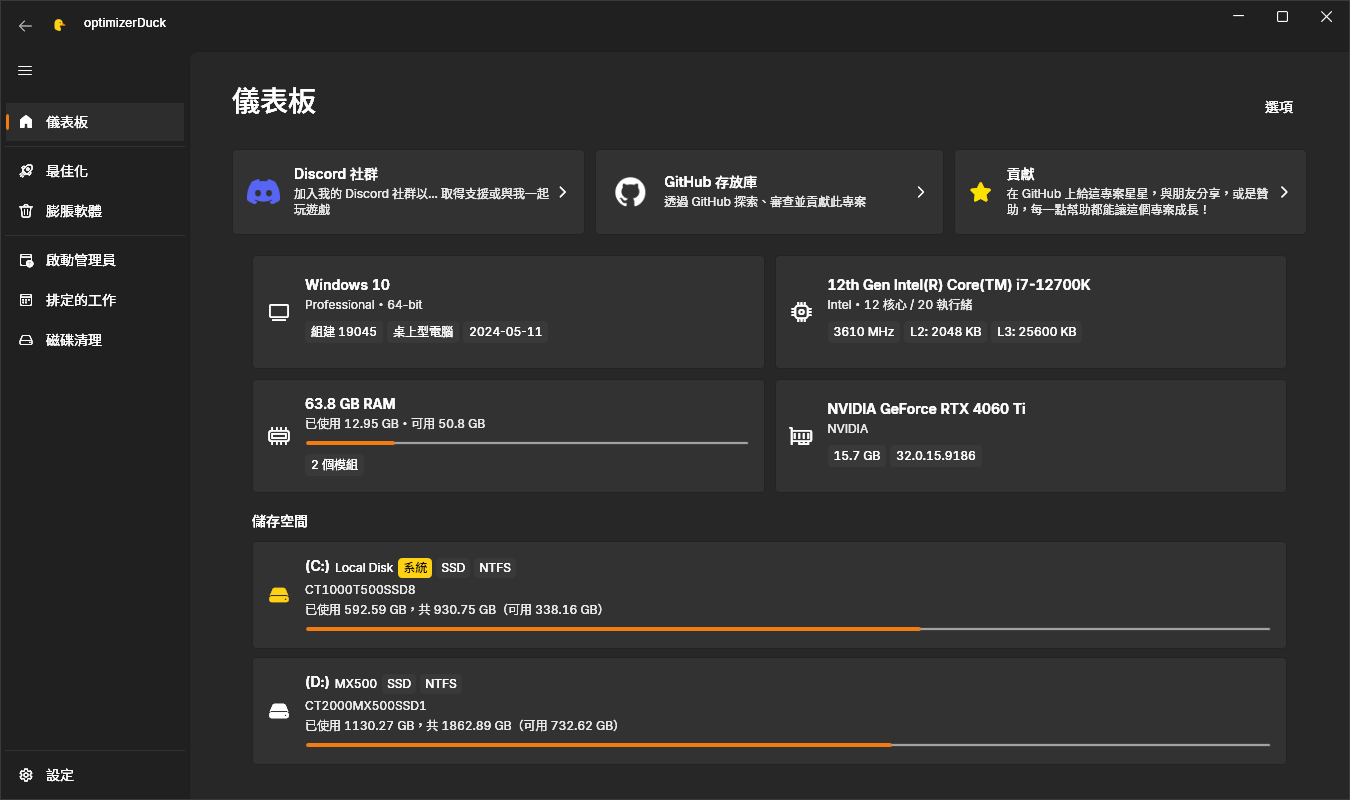
optimizerDuck natively supports multiple languages to provide a better user experience globally. Supported languages include:
- 🇺🇸 English (United States) - Primary & recommended
- 🇻🇳 Vietnamese (Tiếng Việt)
- 🇹🇼 Traditional Chinese (正體中文) - translation by abc0922001
- 🇨🇳 Simplified Chinese (简体中文) - translation by wcxu21
How to change the language:
- Open optimizerDuck.
- Navigate to the Settings tab from the navigation bar.
- Look for the Language card and its dropdown menu.
- Select your preferred language.
- Restart the application to apply the changes.
Recommended Language
English is the recommended language as it provides the most accurate and complete descriptions for all optimizations.
Contributing Translations
If you would like to contribute a translation for optimizerDuck, please check out the Contributing Translations guide for instructions on how to get involved.
Every contribution is welcome and appreciated, and it helps make optimizerDuck more accessible to users around the world! ❤️
Community
Join the optimizerDuck community to get help, share feedback, and connect with other users.
- Discord: Join our Discord server to interact with the development team and other users.
For more details, visit the Community page.
Get Started with Optimization
Explore the guides below to optimize and manage your system effectively:
- Features - Toggle built-in Windows behaviors such as taskbar, desktop, Explorer, and gaming options.
- Optimize - Improve overall system performance.
- Bloatware - Remove unwanted pre-installed applications.
- Startup Manager - Control and manage startup programs.
- Scheduled Tasks - Manage scheduled tasks.
- Disk Cleanup - Free up disk space by removing unnecessary files.
Contribute
If optimizerDuck has been helpful to you, here are a few ways you can support the project and help keep it growing.
- GitHub: Star the repository, report bugs, or contribute on GitHub.
- or, if you want to support the project financially, consider buying me a coffee or sharing the project with your friends!
Visit the Support Me and Contribute page to learn more.
Important Best Practices
Before you dive into optimizing your Windows system, please keep the following tips in mind:
Create a Restore Point
Always create a Windows System Restore Point or a backup before applying system optimizations. This ensures you can revert changes instantly if something doesn't work as expected.
- Restart Your PC: Remember to restart your computer after applying optimizations so that all registry and system changes take effect properly.
- Check for Updates: Although optimizerDuck updates frequently, check the GitHub repository for new releases to benefit from the latest features and bug fixes.
Disclaimer
optimizerDuck is an independent project and is not affiliated with, endorsed by, or sponsored by Microsoft Corporation. All product and company names are trademarks™ or registered® trademarks of their respective holders. Use of them does not imply any affiliation with or endorsement by them. Please use optimizerDuck at your own risk.