Skip to content

Optimize

This document helps you understand how to optimize your system using optimizerDuck.

What is Optimization?

Optimization is the process of making your system run faster and more efficiently. These optimizations are designed to improve your system's performance, security, and privacy.

Learn more about optimization here (FAQ, Optimizing) or here (Wikipedia).

Apply an optimization

Image Preview
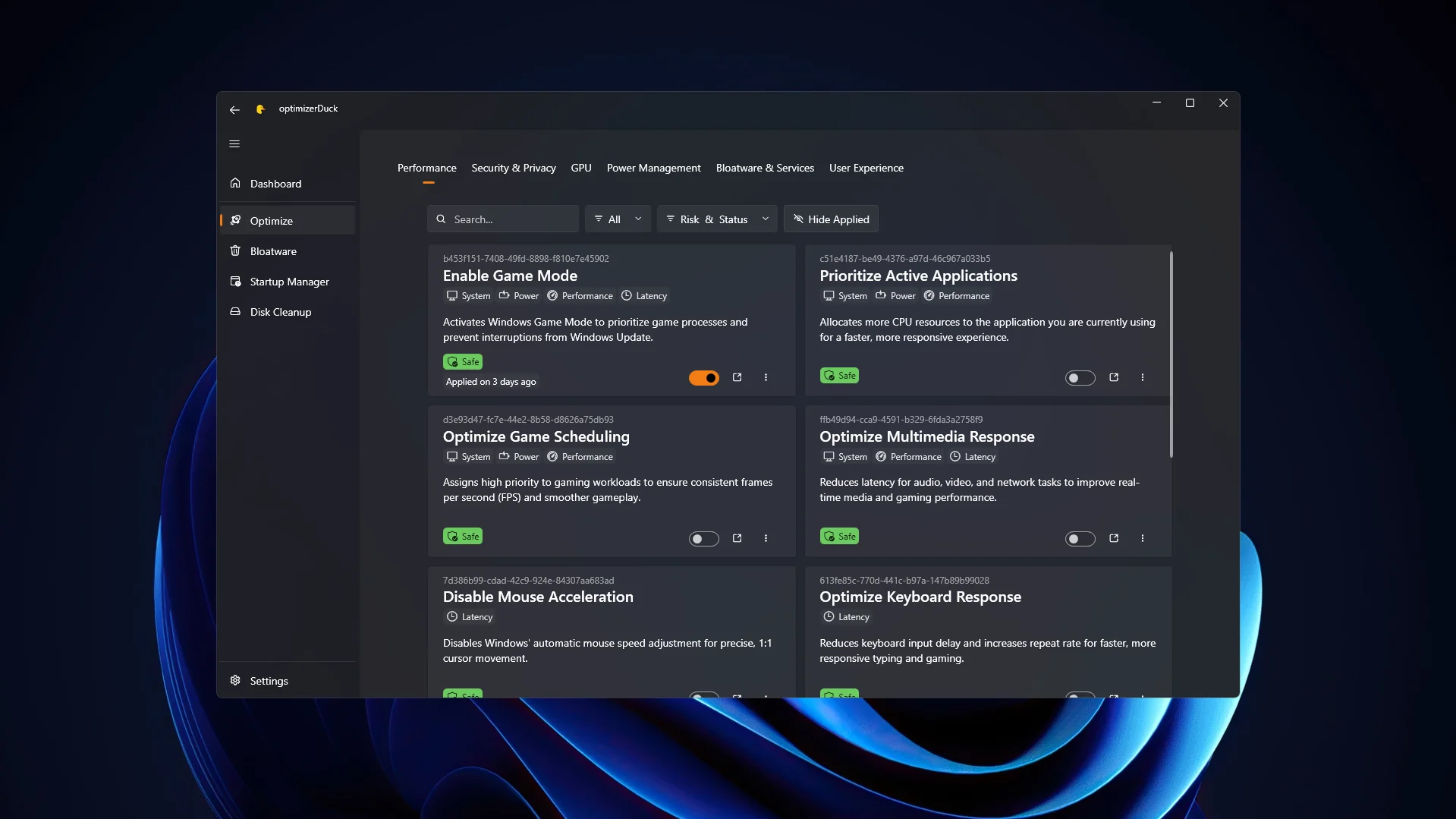
Optimization items organized into grid sections

When you open the application and navigate to the Optimize tab, you will see optimization items organized into different grid sections. Each optimization includes:

  • A clear description of what it will do to your system.
  • Tags to categorize the optimization, making it easy to find ones that suit your needs.
  • A risk level indicator, divided into three levels: Safe, Caution, and Risky.

To apply an optimization, click the toggle switch in the bottom-right corner of the optimization card. If the optimization is not yet applied, toggling it on will apply it.

Some optimizations require an internet connection

Certain optimizations need a network connection to be applied. You will see a "Network connection required" tag with a Wi-Fi icon below the optimization name.

Remember to restart your computer

After applying optimizations, you need to restart your computer to ensure all changes take effect.

Revert an optimization

As mentioned above, each optimization has a different risk level. If you experience any issues after applying an optimization, you can revert it by clicking the toggle switch in the bottom-right corner of the optimization card to turn it off.