
Skip to content

Startup Manager

Manage the applications that automatically run when your computer starts up.

What is the Startup Manager?

The Startup Manager is a built-in tool in optimizerDuck that lets you view and control which programs launch automatically when Windows starts. Too many startup programs can significantly slow down your boot time and consume system resources in the background. It also includes startup scheduled tasks.

Viewing startup items

Image Preview
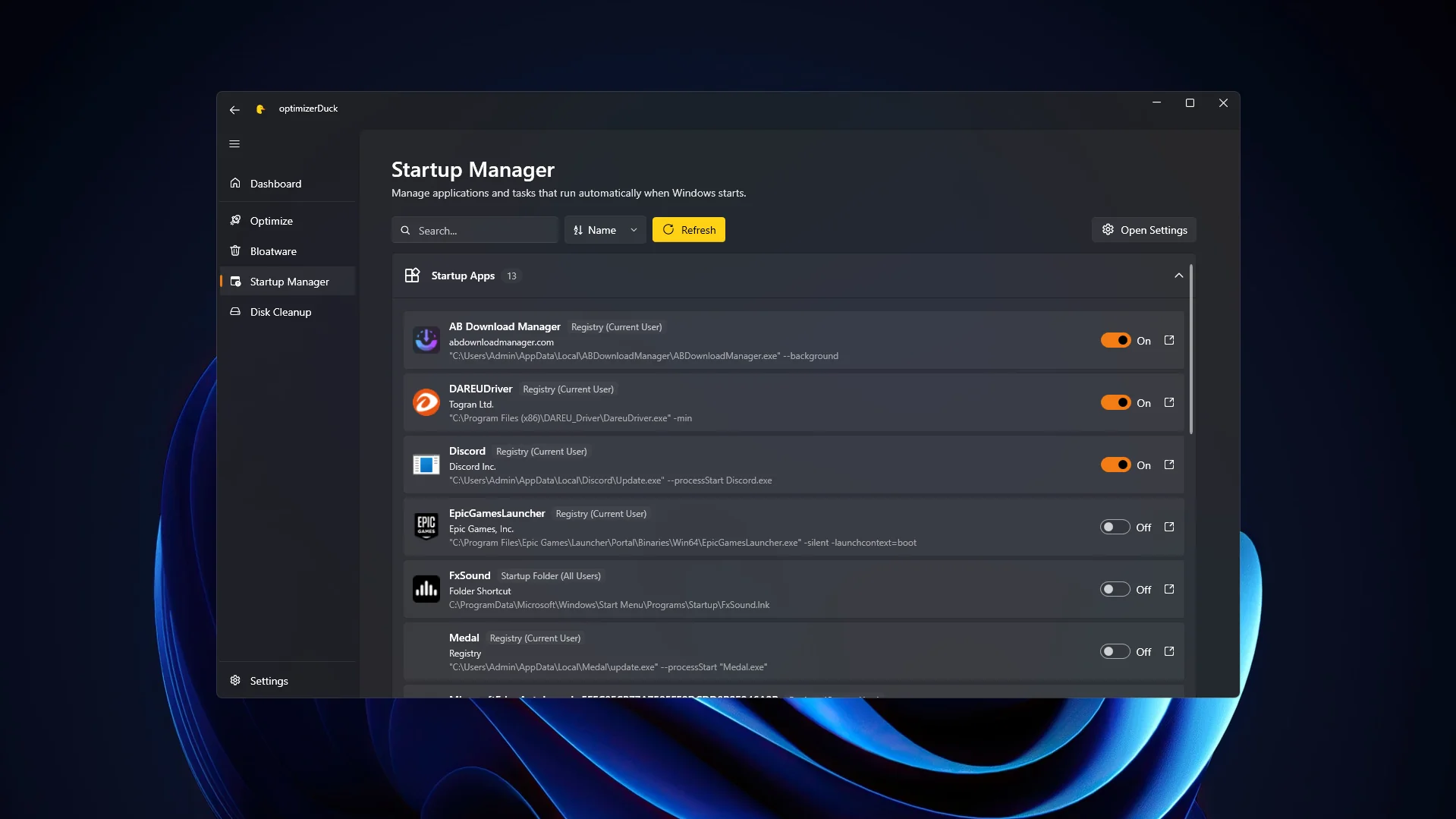
Startup Manager (Startup Apps)

Navigate to the Startup Manager tab to see a list of all registered startup programs. Each entry displays:

Startup App:

  • Name of the application
  • Location of the application (Registry or Folder)
  • Description of the application
  • Status (Enabled or Disabled)
  • Command to be executed

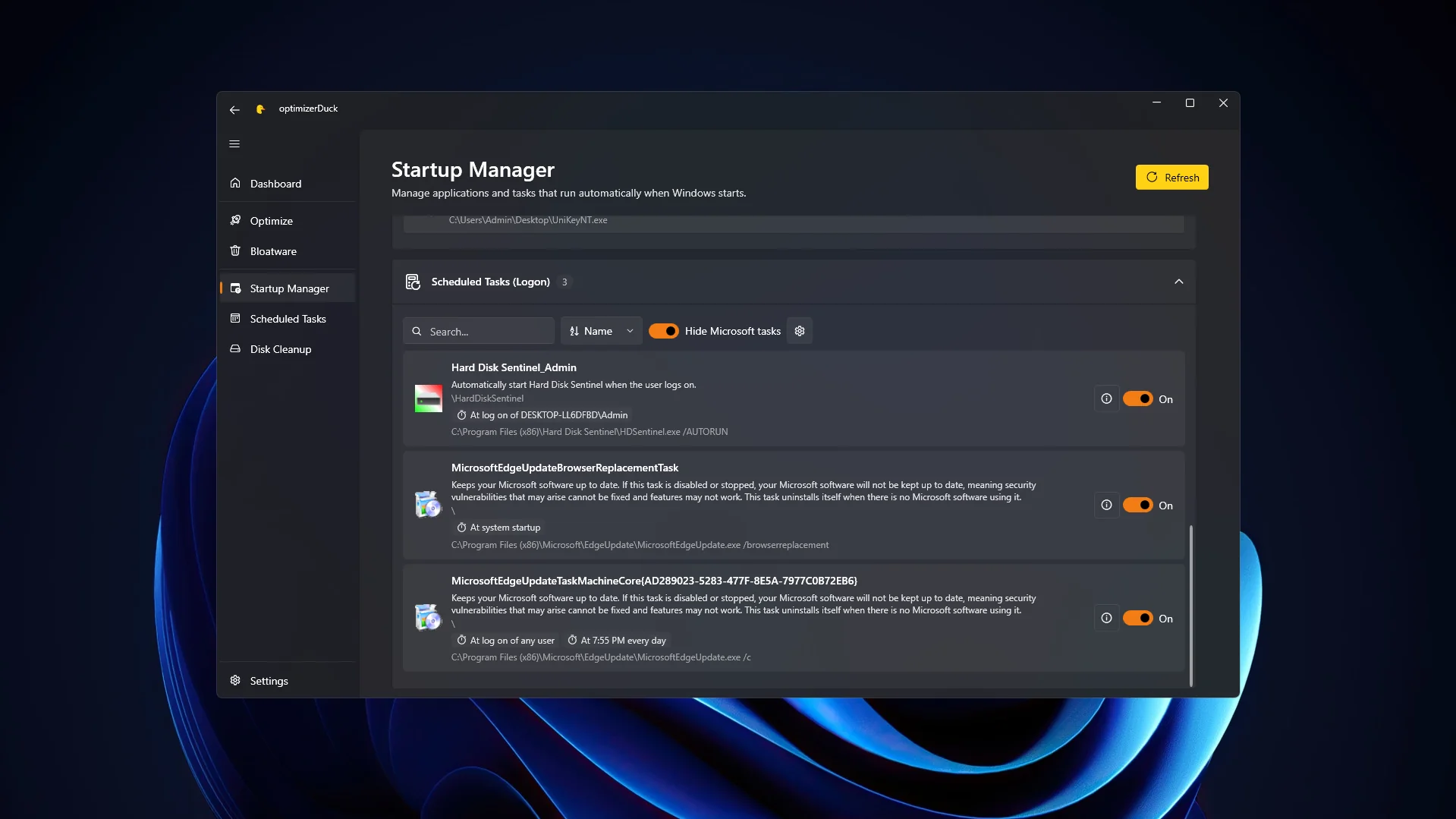
Startup Schedule (Logon):

  • Name of the scheduled task
  • Description of the scheduled task
  • Status (Enabled or Disabled)
  • Task Location (usually starts with \)

Disabling a startup program

If you want to prevent a program from running at startup:

  1. Find the program in the list
  2. Click the toggle switch to disable it
  3. The program will no longer launch automatically when Windows starts

TIP

Disabling a startup program does not uninstall or delete it. You can still open the program manually whenever you need it.

Enabling a startup program

If you previously disabled a startup program and want to re-enable it:

  1. Find the program in the list
  2. Click the toggle switch to enable it
  3. The program will launch automatically on the next Windows startup

Disabling/Enabling a startup scheduled task (Logon)

Image Preview
Startup Manager (Startup Schedule)

Follow the same steps as above to disable or enable a startup scheduled task.

What should I disable?

As a general rule of thumb:

  • Safe to disable: Cloud storage sync apps (OneDrive, Dropbox), messaging apps (Discord, Skype, Teams), media players, and game launchers that you don't need running immediately.
  • Keep enabled: Antivirus software, hardware drivers (audio, graphics, input devices), important system utilities, and any programs you rely on being available immediately after boot.

WARNING

Be cautious when disabling startup items you are unfamiliar with. Some entries may be related to critical system services or hardware drivers. If you are unsure, leave them enabled or search online for more information about the specific program.