Skip to content

Bloatware

Manage and remove pre-installed applications that you don't need.

What is Bloatware?

When you purchase a new Windows PC or install a fresh copy of the operating system, it often comes bundled with various pre-installed applications. While some are useful, many of these apps, often called "bloatware", are not needed by most users. Examples include promotional games, trial software, and integrated Microsoft services like Xbox features or Office hubs.

These applications take up storage space and may run background processes that consume memory and CPU. optimizerDuck helps you remove them to reclaim disk space and improve system responsiveness.

Select applications to remove

Image Preview
Click to zoom

Select applications to remove

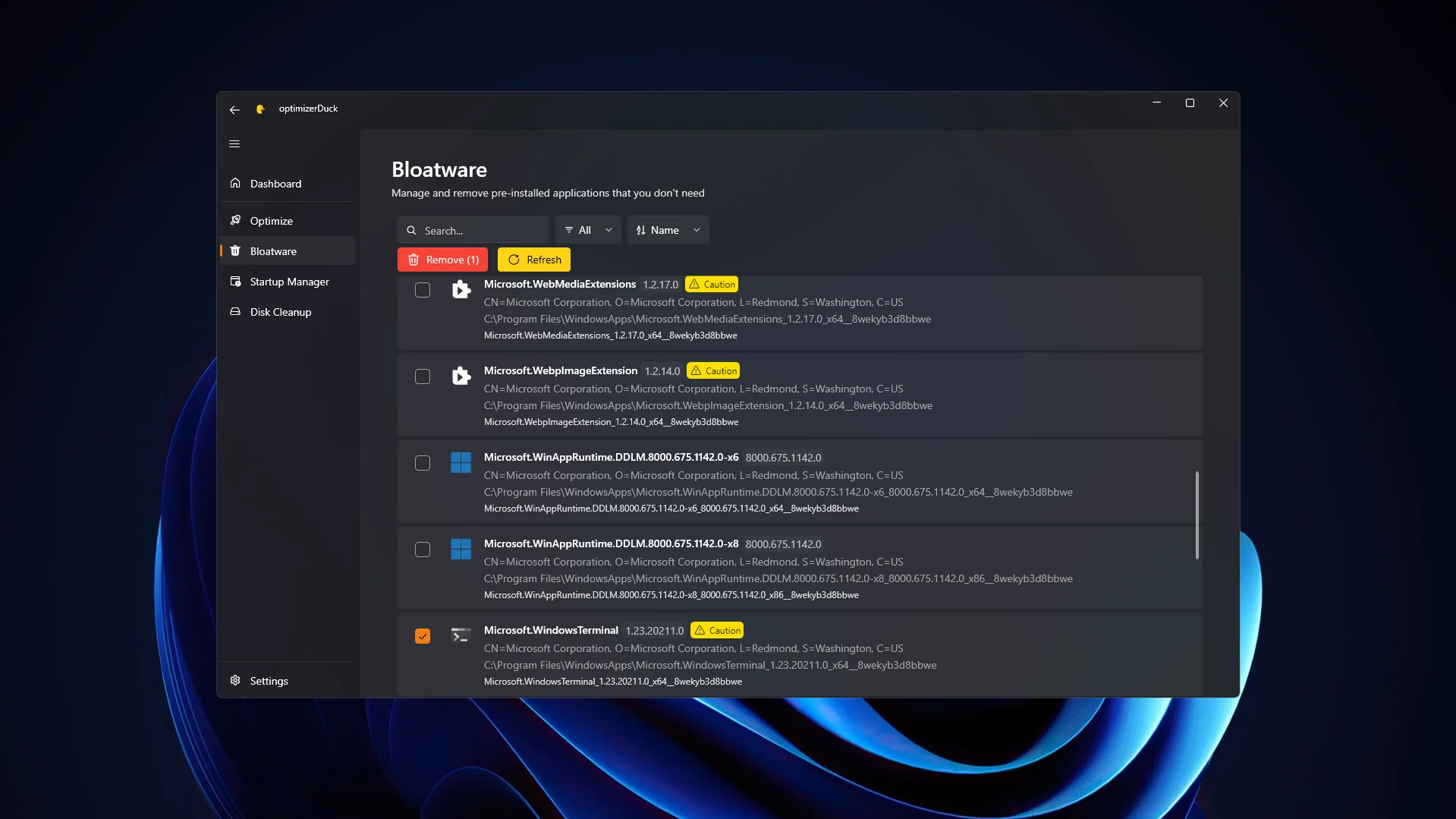
When you open the Bloatware tab, optimizerDuck scans your system and lists all pre-installed app packages. Instead of technical jargon, the interface shows each application with clear visual indicators. You can easily identify apps by their recognizable logo, publisher information, and the direct path to where they are installed on your drive.

optimizerDuck also evaluates each application and assigns a safety rating.

Safety levels

  • Safe: These applications are generally non-essential to the core functioning of Windows. Removing them carries virtually no risk of breaking your system.
  • Caution: These applications might be tied to certain built-in Windows features or could be dependencies for other software. It is highly recommended to create a system restore point or a backup before deciding to remove them.

Even for applications marked as "Safe", it's best practice to only select the ones you are completely sure you do not use. Don't blindly remove everything just because the app allows it.
To mark an application for removal, check the box next to its name. You can select as many applications as you want in a single session.

Remove

Image Preview
Click to zoom

Confirmation dialog

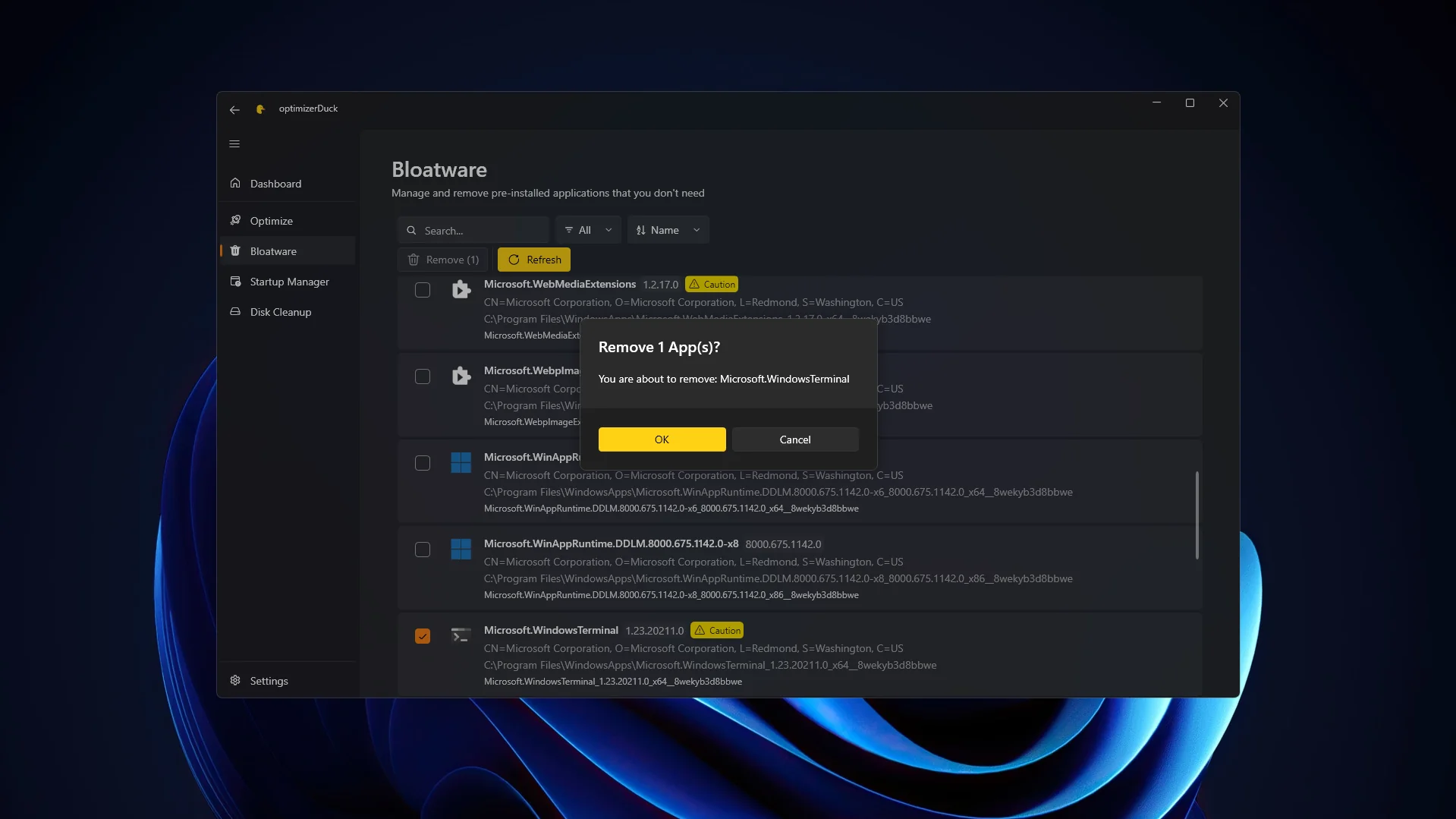
After going through the list and carefully checking the boxes for all the applications you no longer want, click the "Remove" button located in the top menu bar.

Before making changes, optimizerDuck shows a confirmation dialog listing all applications scheduled for removal so you can double-check. Once you click "OK", the utility uninstalls the selected packages. Some larger applications may take longer to remove.