
Start and Stop actions
When a task is disabled (toggled off), the Start and Stop action buttons on its card are automatically disabled to prevent confusion.
View and manage Windows scheduled tasks.
Windows has a built-in scheduler that lets programs and scripts run automatically at specific times, when you log in, or after system events.
This is useful for maintenance like backups and updates. But many third-party apps create their own tasks that run telemetry, check for updates on boot, or pre-load services you didn't ask for. Managing these tasks puts you back in control.
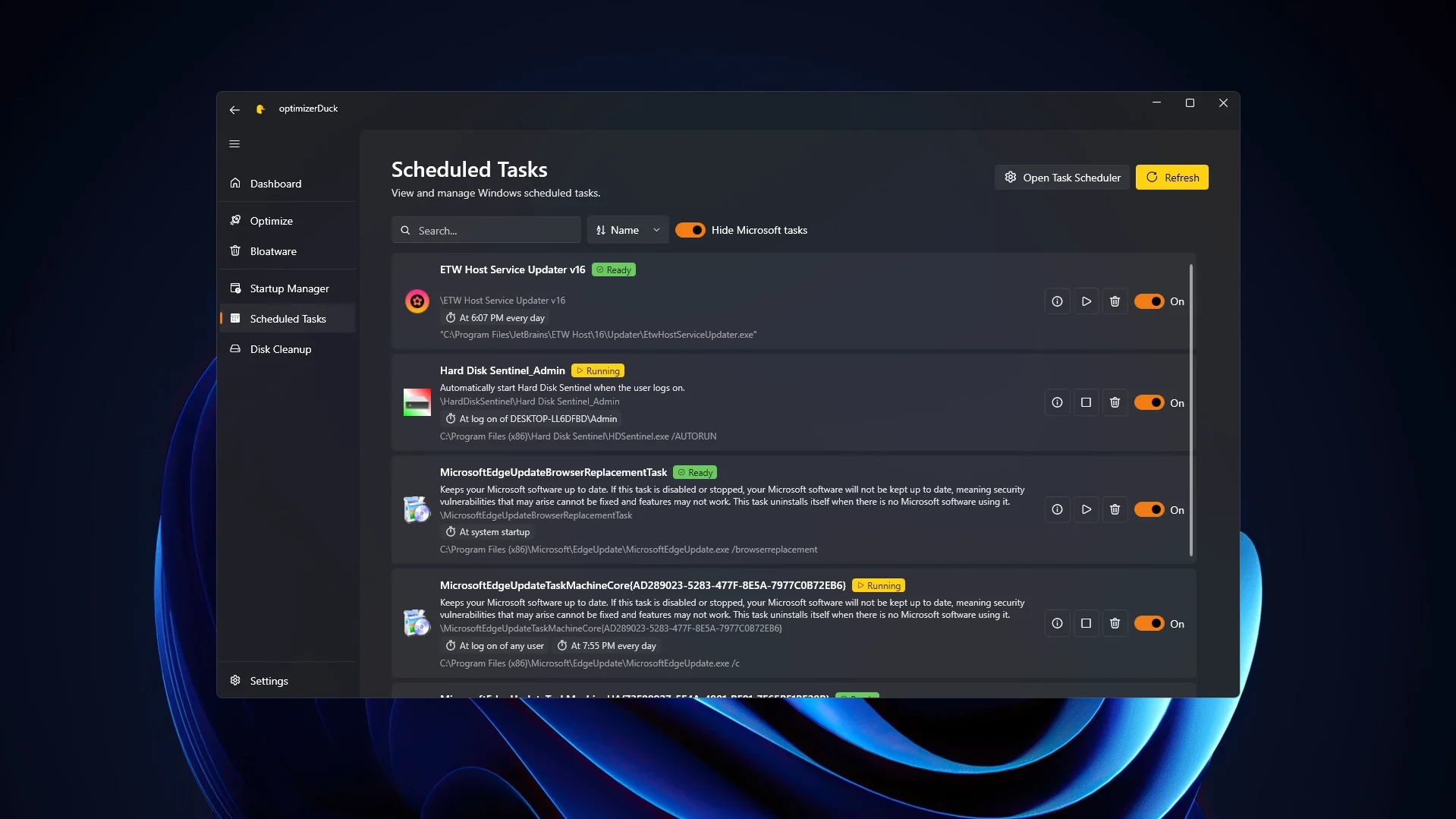
Scheduled Tasks
In the Scheduled Tasks view, you can see all automated processes on your system. Instead of using the complex Windows Task Scheduler app, optimizerDuck shows everything you need in a clean interface.
To disable a task, find it in the list and click the toggle switch on the left side. The switch will turn gray, meaning the task will no longer run on its schedule.
To restore the task, flip the switch back. A notification will confirm the change was applied.
When a task is disabled (toggled off), the Start and Stop action buttons on its card are automatically disabled to prevent confusion.
Sometimes disabling a task is not enough, especially if it belongs to an app you already uninstalled. In these cases, you can delete the task entirely.
Find the task and click the trash icon on its card. Because this removes the task permanently, optimizerDuck will ask for confirmation first. Once confirmed, a notification will show that the task was cleared.
The Task Scheduler handles everything from system backups to driver operations. Be careful.
Only modify tasks you recognize, like update checkers for apps you installed (Adobe, Chrome, games).
DO NOT touch tasks you are not familiar with. Some may be related to critical system services or hardware drivers. Changing these can cause instability or crashes. If unsure, leave it enabled or search online for the task name.