
Hardware vs Software
Hardware upgrades give your PC more power. Optimization makes sure that power is not wasted.
Welcome to optimizerDuck, a free, open-source Windows optimization tool built for performance, privacy, and simplicity. This guide will help you download, launch, and configure the application to suit your preferences.
Before we get started, you might be wondering: why does Windows need optimization at all?
Windows is a great operating system. But it is designed for everyone. That means it comes with many background services, telemetry, pre-installed apps, and scheduled tasks that keep running even if you never use them. These consume your CPU, RAM, disk, and network.
At the same time, many settings that can improve performance and reduce latency are not enabled by default. Windows prioritizes stability and compatibility over speed.
Optimization is about reducing unnecessary overhead. It helps your PC spend more of its resources on what actually matters. Whether you are gaming, programming, creating content, or just browsing the web, a well-optimized Windows feels faster and more responsive.
Hardware upgrades give your PC more power. Optimization makes sure that power is not wasted.
optimizerDuck is a portable application, which means no installation is required!
optimizerDuck.exe file..exe file to run it.For optimizerDuck to apply system-level optimizations effectively, it natively requests administrative privileges when required. You can also right-click the .exe file and select Run as administrator if you face any issues.
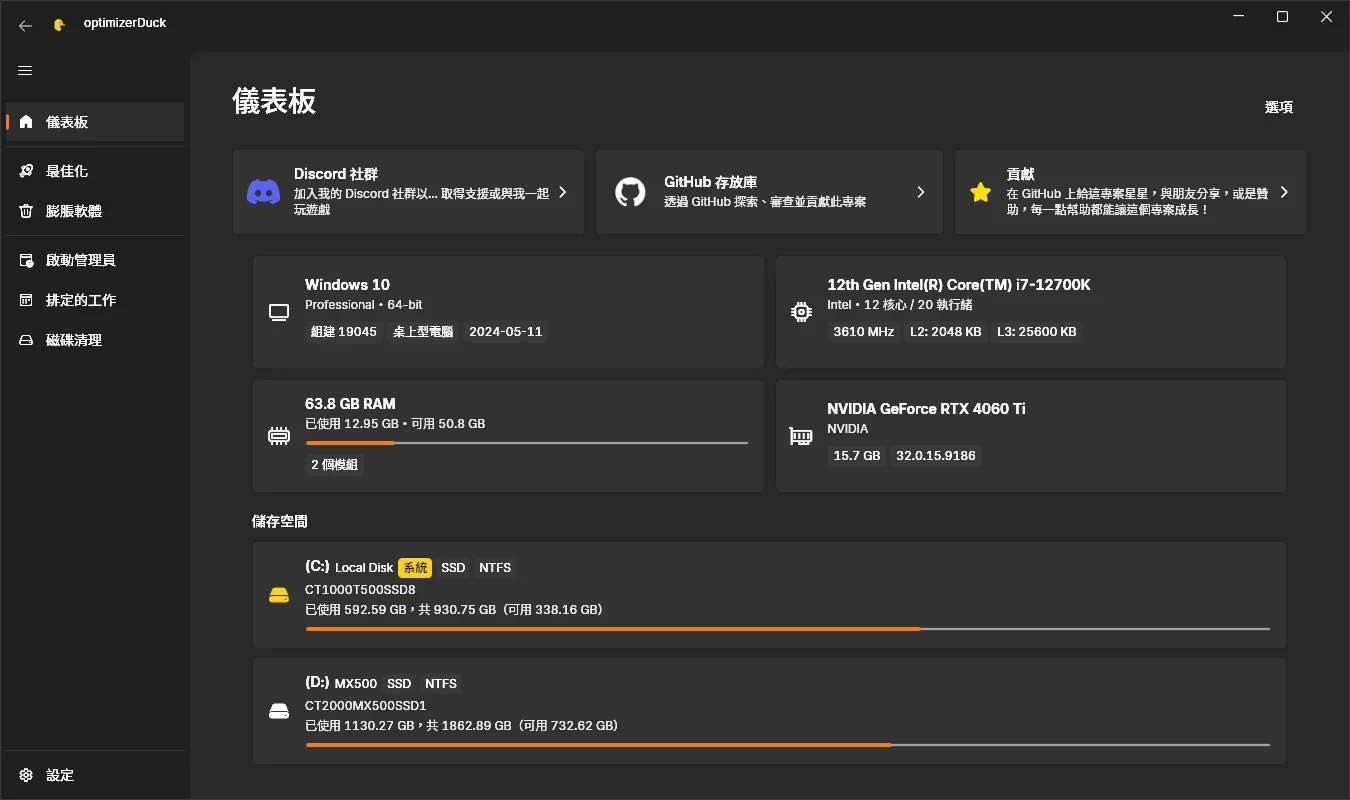
Traditional Chinese interface of optimizerDuck, translated by abc0922001
optimizerDuck natively supports multiple languages to provide a better user experience globally.
| Language | Native Name | Translator | |
|---|---|---|---|
| 🇺🇸 | English (United States) | English | Primary & recommended |
| 🇻🇳 | Vietnamese | Tiếng Việt | itsfatduck |
| 🇹🇼 | Traditional Chinese | 正體中文 | abc0922001 |
| 🇨🇳 | Simplified Chinese | 简体中文 | wcxu21 |
| 🇷🇺 | Russian | Русский | Foodhead |
| 🇫🇷 | French | Français | Robocnop |
| 🇩🇪 | German | Deutsch | pixeldepartment |
| 🇮🇱 | Hebrew | עברית | yosef-chai |
| 🇰🇷 | Korean | 한국어 | klfnn |
| 🇪🇸 | Spanish | Español | thexxtt |
| 🇯🇵 | Japanese | 日本語 | zerofrip |
| 🇵🇱 | Polish | Polski | dudus2000 |
| 🇧🇷 | Portuguese (Brazil) | Português (Brasil) | mhanelia |
| 🇹🇷 | Turkish | Türkçe | melut42 |
| 🇸🇦 | Arabic | العربية | s5xx5s |
| 🇮🇩 | Indonesian | Bahasa Indonesia | nekowawolf |
| 🇮🇹 | Italian | Italiano | bandrea83 |
How to change the language:
English is the recommended language as it provides the most accurate and complete descriptions for all optimizations.
If you would like to contribute a translation for optimizerDuck, please check out the Contributing Translations guide for instructions on how to get involved.
Every contribution is welcome and appreciated, and it helps make optimizerDuck more accessible to users around the world! ❤️
Join the optimizerDuck community to get help, share feedback, and connect with other users.
For more details, visit the Community page.
Explore the guides below to optimize and manage your system effectively:
If optimizerDuck has been helpful to you, here are a few ways you can support the project.
Visit the Support and Contribute page to learn more.
Before you dive into optimizing your Windows system, please keep the following tips in mind:
Always create a Windows System Restore Point or a backup before applying system optimizations. This ensures you can revert changes instantly if something doesn't work as expected.
optimizerDuck is an independent project and is not affiliated with, endorsed by, or sponsored by Microsoft Corporation. All product and company names are trademarks™ or registered® trademarks of their respective holders. Use of them does not imply any affiliation with or endorsement by them. Please use optimizerDuck at your own risk.